What are Hot Lead Indicators in Salesgem?
In Salesgem, Hot Lead Indicators help the sales team identify leads that show a higher level of interest or engagement and may have a greater possibility of conversion. They provide useful signals that help sales representatives understand which leads may require immediate attention and follow-up.
How are Hot Lead Indicators useful to your business?
For example, suppose a real estate company has 500 leads. Among them, one customer has repeatedly responded to calls, asked for the property price, requested additional information, and shown interest in scheduling a site visit. These activities can indicate that the lead is highly interested and may be considered a hot lead.
The sales representative can prioritize this lead and follow up quickly instead of treating all 500 leads in the same way. Similarly, the sales manager can use these indicators to help the team focus on leads with stronger buying signals.
You can mark hot leads in Salesgem in two ways:
- change the lead’s status to Sales Opportunity,
- configure specific Lead Statuses as Hot Lead in Settings → Lead Management → Lead Status.
Step-by-step guide
Method 1: Mark a single lead as Hot by changing status to “Sales Opportunity”
- Go to Leads from the left menu.
- Click Lead Status.
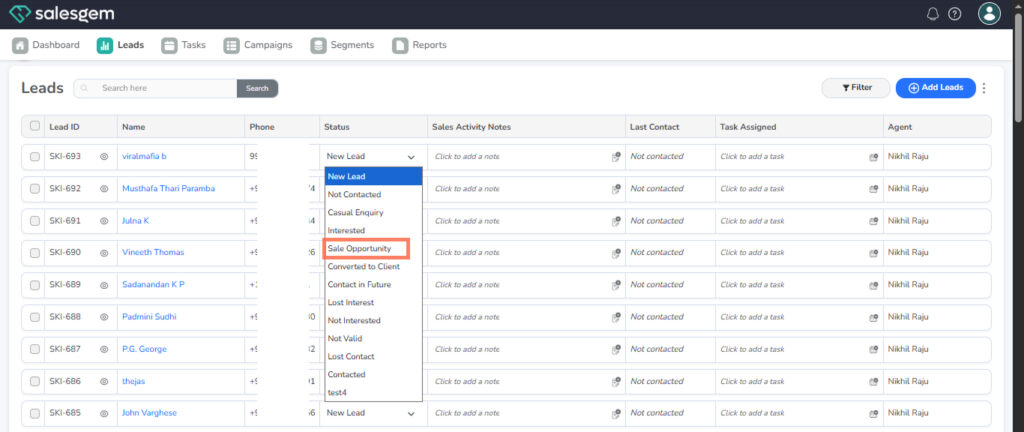
- Select Sales Opportunity from the status list.
Method 2: Treat any status as Hot via Settings (applies to many leads)
Go to Settings.
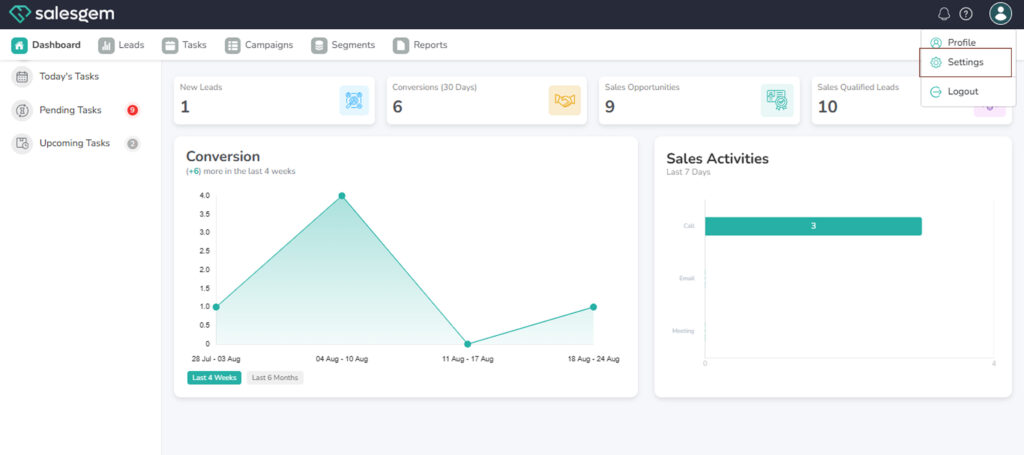
Open Lead Management → Lead Status.
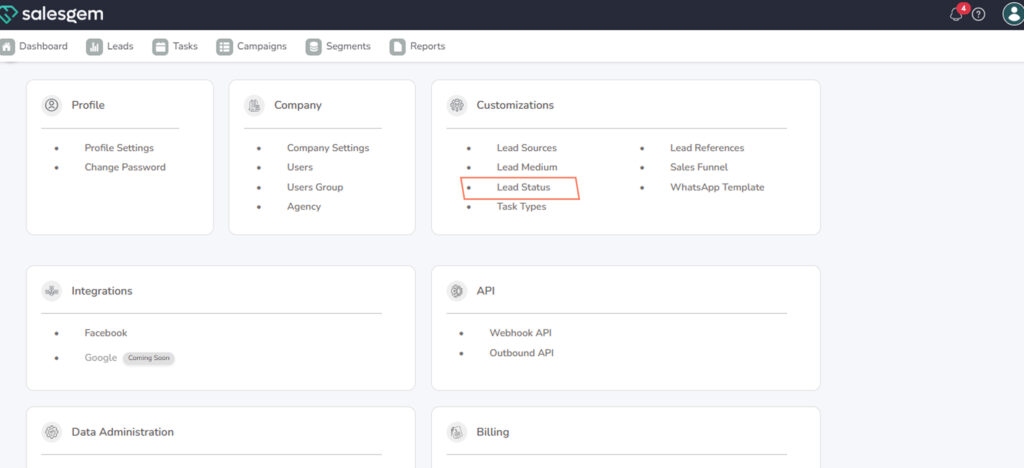
Pick the status you want to flag .
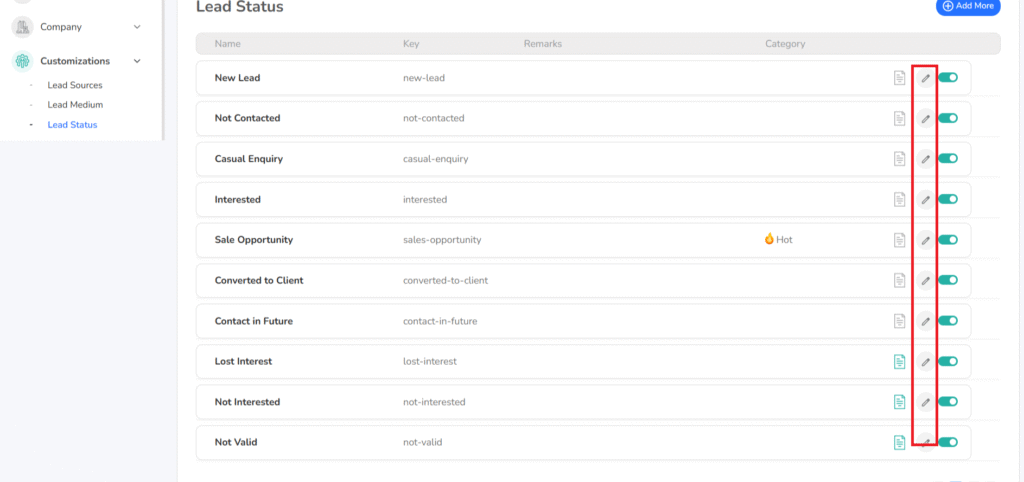
Click Edit, then enable Mark as Hot Lead (or equivalent toggle).
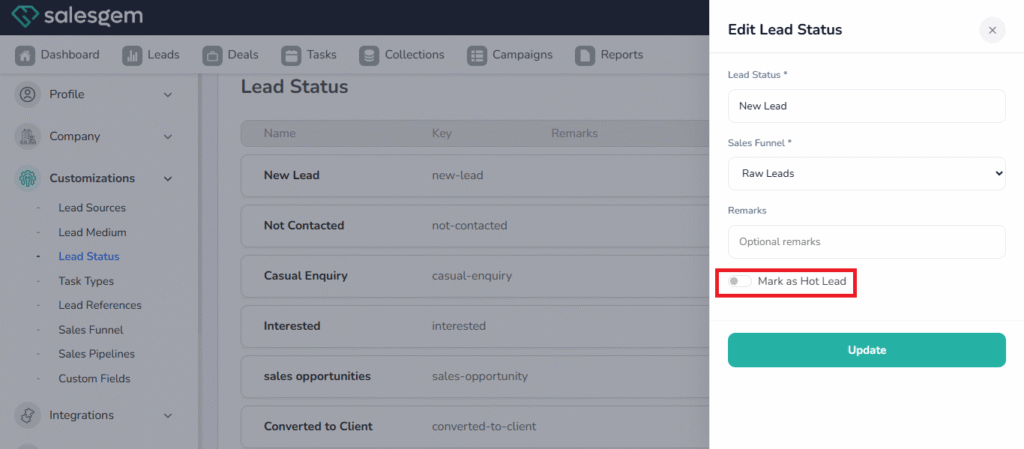
update your changes.