What is Lead Source in Salesgem?
In Salesgem, Lead Source refers to the channel or platform from which a lead was generated or received. It helps businesses identify where their potential customers are coming from, such as Facebook, Instagram, Google, website forms, WhatsApp, referrals, or other marketing channels. By recording the Lead Source, businesses can keep track of the origin of each lead throughout the sales process.
How is Lead Source useful to your business?
For example, suppose a real estate company is running marketing activities on Facebook, Instagram, and Google. In one month, the company receives 300 leads: 150 from Facebook, 100 from Instagram, and 50 from Google. By tracking the Lead Source in Salesgem, the business can identify which channels are generating the most leads.
The business can then compare these leads based on their quality and conversion. For example, even if Facebook generates more leads, Google may generate more customers. This information helps the business understand which marketing channels are performing better and where to focus its marketing budget.
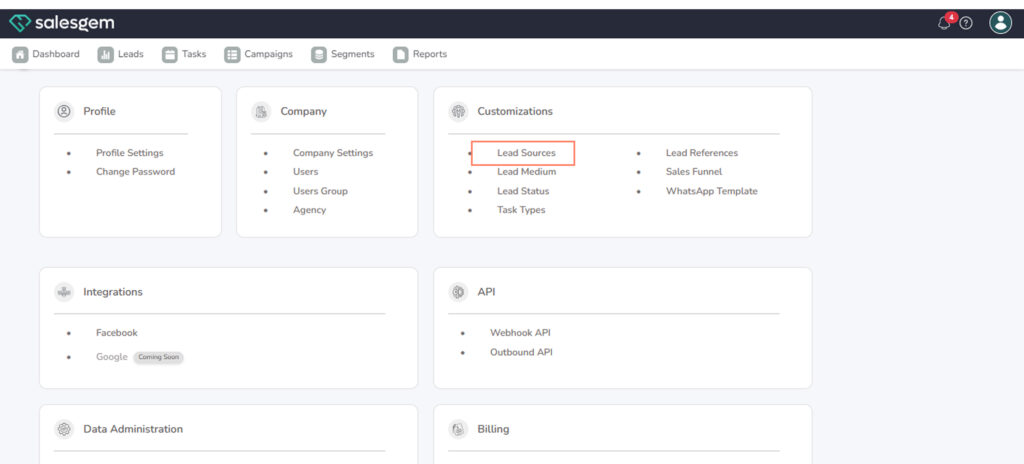
You can add or edit lead sources in Salesgem from Settings → Lead Customizations → Lead Sources. From there, you can create new sources, rename existing ones, or deactivate sources so they no longer appear when creating or importing leads.
Add a new lead source
- Go to Settings in the left nav.
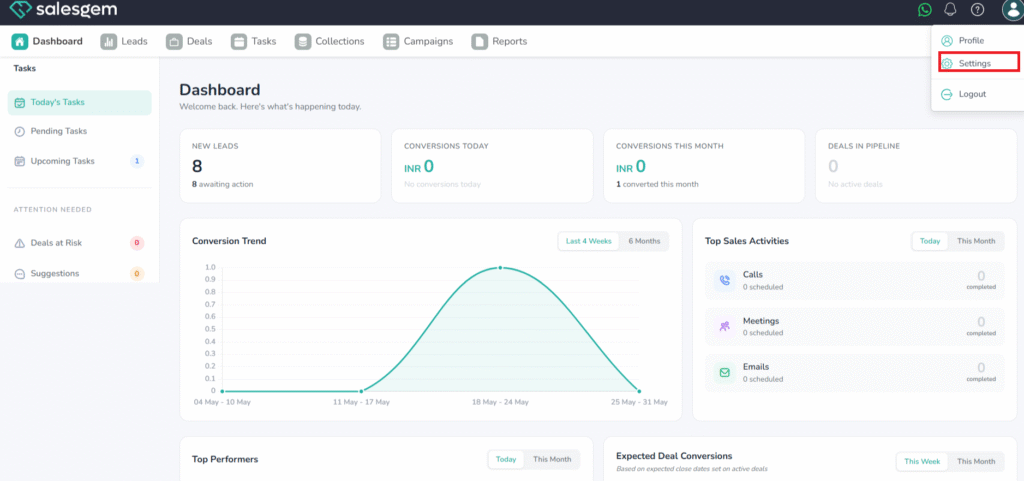
2. Open Lead Customizations and click Lead Sources.
3. Select Add Source (or New).
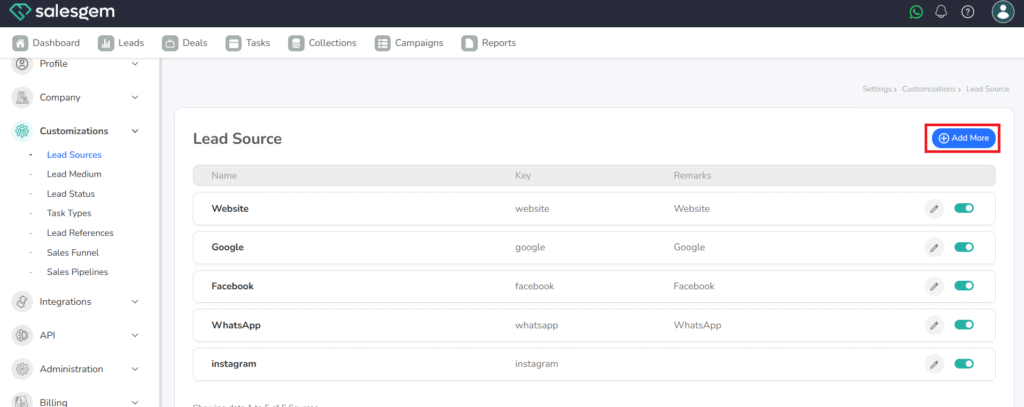
4. Enter the Source Name (e.g., Facebook Ads, Referral, Website Form).
In Salesgem, you can add or edit lead sources by going to Settings → Lead Customizations → Lead Sources, where admins manage the master list used across lead forms, imports, and reports. To add a source, click Add Source, enter a clear name like Facebook Ads or Referral, and save it as Active so users can select it immediately.
Step by step to Edit
open the source from the list, update its name or description, and save; the new label will appear on existing leads and in source-based reports.
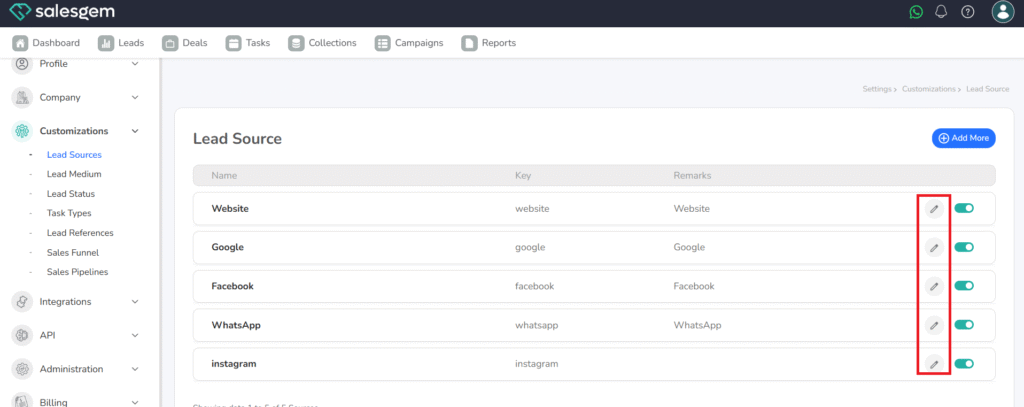
When a source is no longer needed, deactivate or archive it rather than deleting, which preserves historical data while removing it from dropdowns for new leads. Keep names short and consistent to avoid duplicates, and review the list periodically so reporting stays clean and comparable.